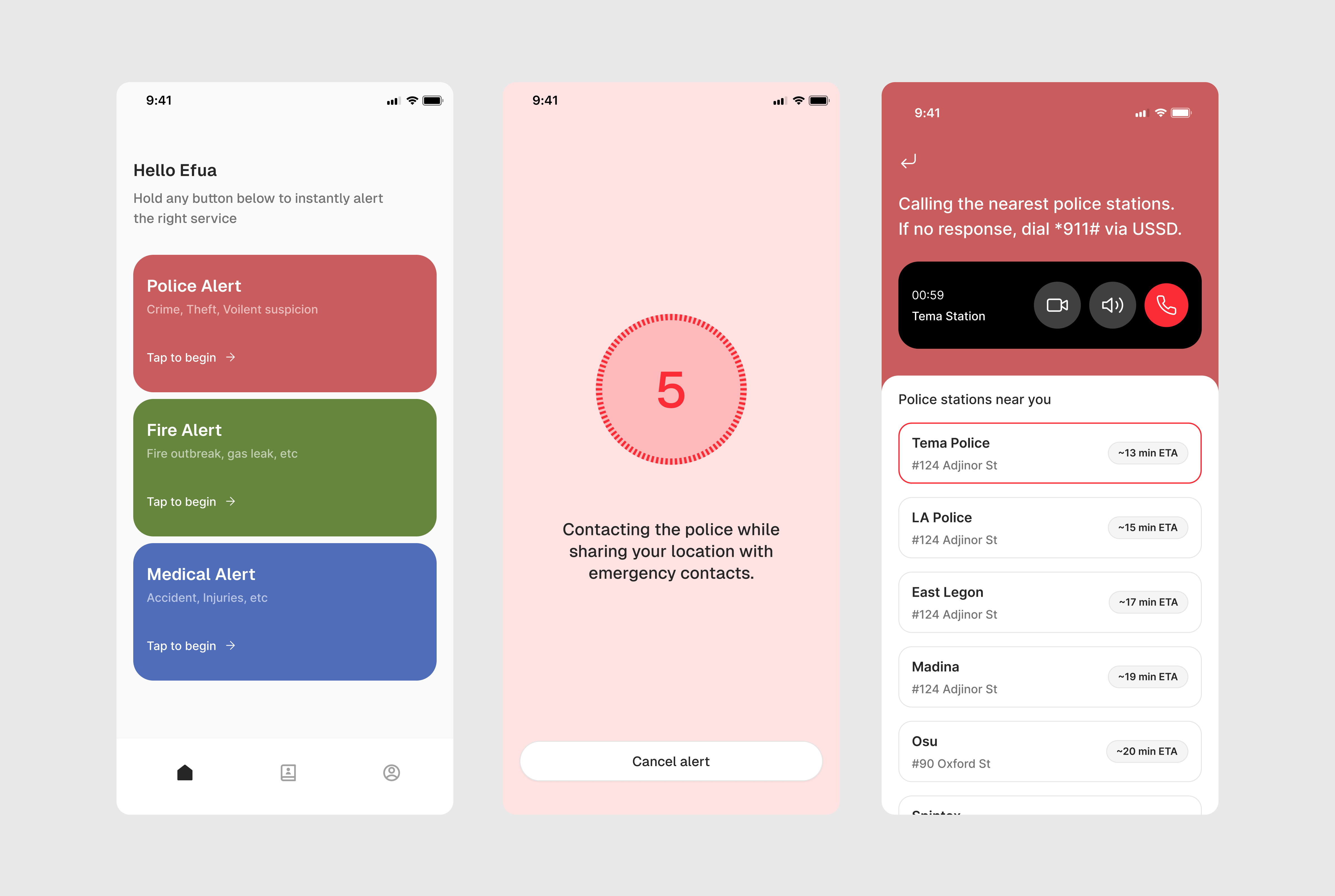
USSD works on any phone with no internet connection, no app installed, and no data balance. For an emergency product targeting Ghana, where data coverage is uneven and feature phones are still common, this is not a fallback. It is the most defensible feature in the product.
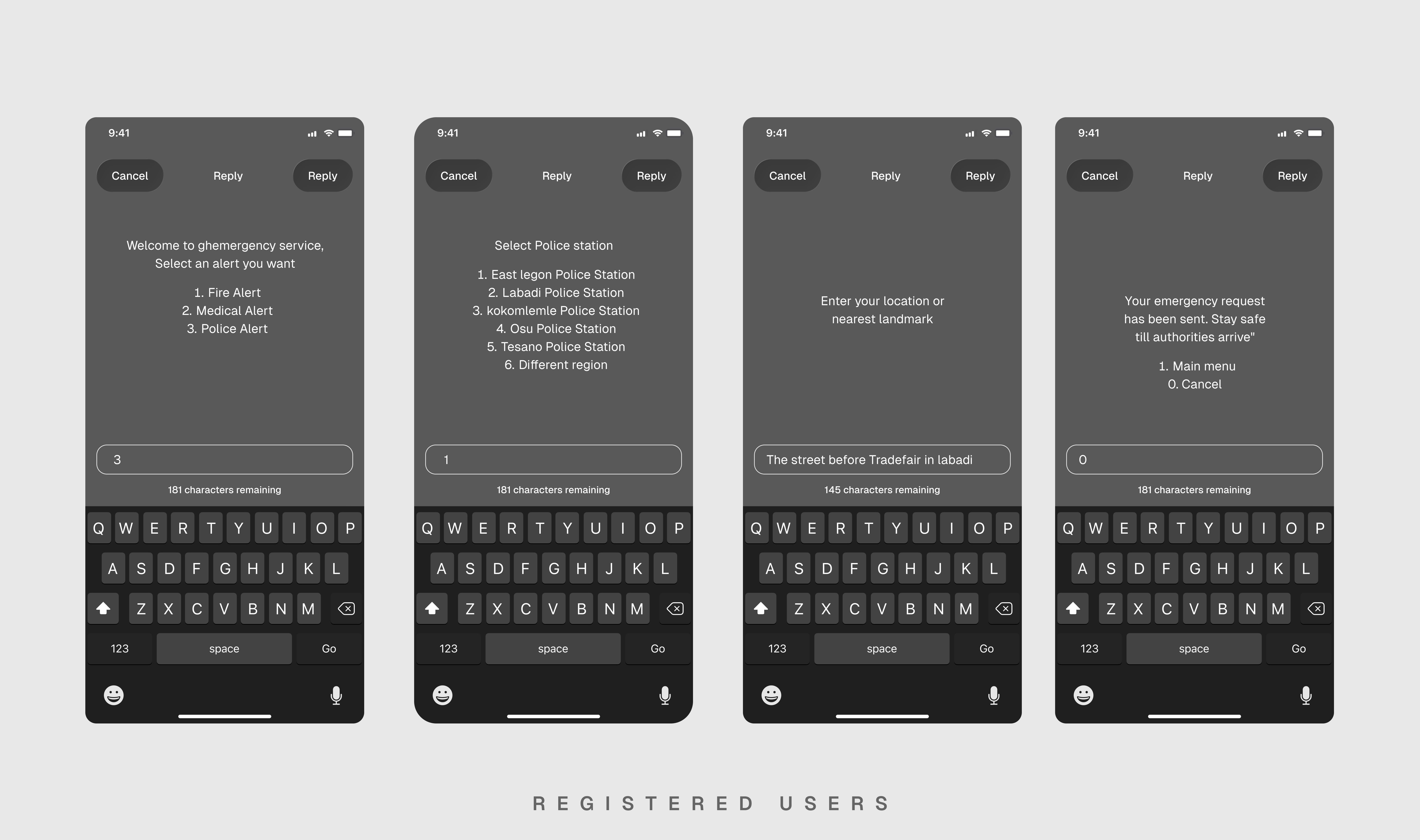
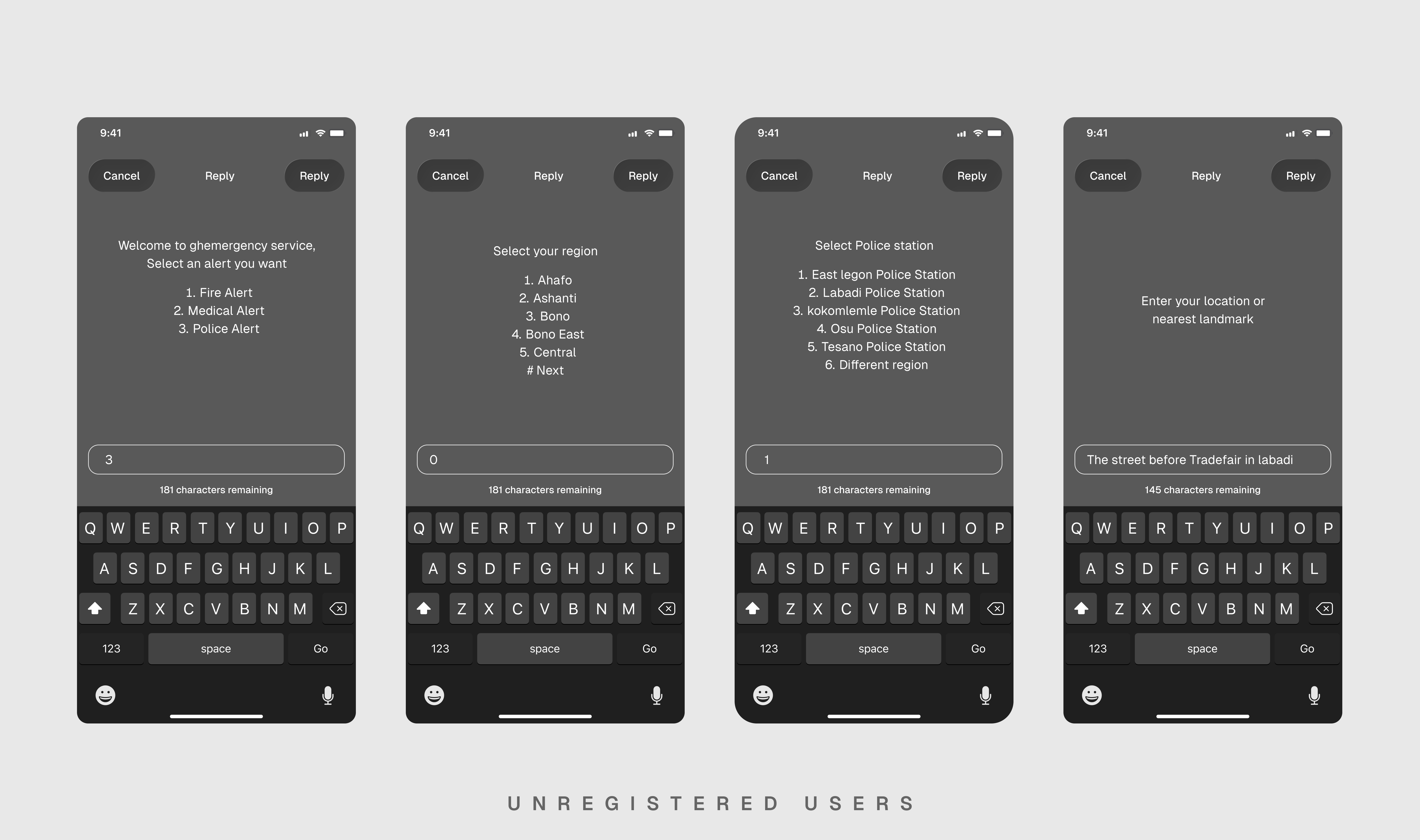
The USSD flow presents a numbered menu: 1 for Fire, 2 for Medical, 3 for Police. The user dials a short code, selects their emergency type, and the system routes the alert without requiring anything beyond a basic cellular signal. This positions SafeNet as genuinely inclusive in a way pure-app competitors cannot claim, and it reframes the product from "a better emergency app" to "an intelligence layer that works regardless of the device in your hand."
There is one hard constraint worth naming honestly: USSD cannot transmit GPS location. The protocol carries only text, there is no mechanism to attach location data, and cell tower accuracy in Ghana can mean a radius of several kilometres in rural areas, which is not useful for dispatch. The app version gives you live GPS. The USSD version requires a human in the loop. The design addresses this directly: the USSD flow prompts the user for their location as part of the session, asking for a nearest landmark, area, or major road.
The station list problem is solved through backend intelligence. Showing every police station in Ghana would be overwhelming and useless without location context. Instead, the system uses the caller's phone number, which is passed automatically at the start of every USSD session, to look up their stored location. Every time a registered user opens the SafeNet app, their current GPS coordinates are silently updated on the backend. When they dial the short code, the server uses that last known location to pre-filter the station list to their area with no extra step required. For users who have travelled or haven't opened the app recently, a "Different region?" option sits at the bottom of the list, letting them manually select their current region before seeing a filtered station list. For completely unregistered users dialling in for the first time, the flow starts with a region selection menu (16 options matching Ghana's regions) before showing local stations.
The app and the USSD flow are not two separate products. They share the same backend. The more a user engages with the app, the smarter and faster the USSD experience becomes. SafeNet gets more useful the more embedded it is in a user's life, even when they rely solely on USSD.